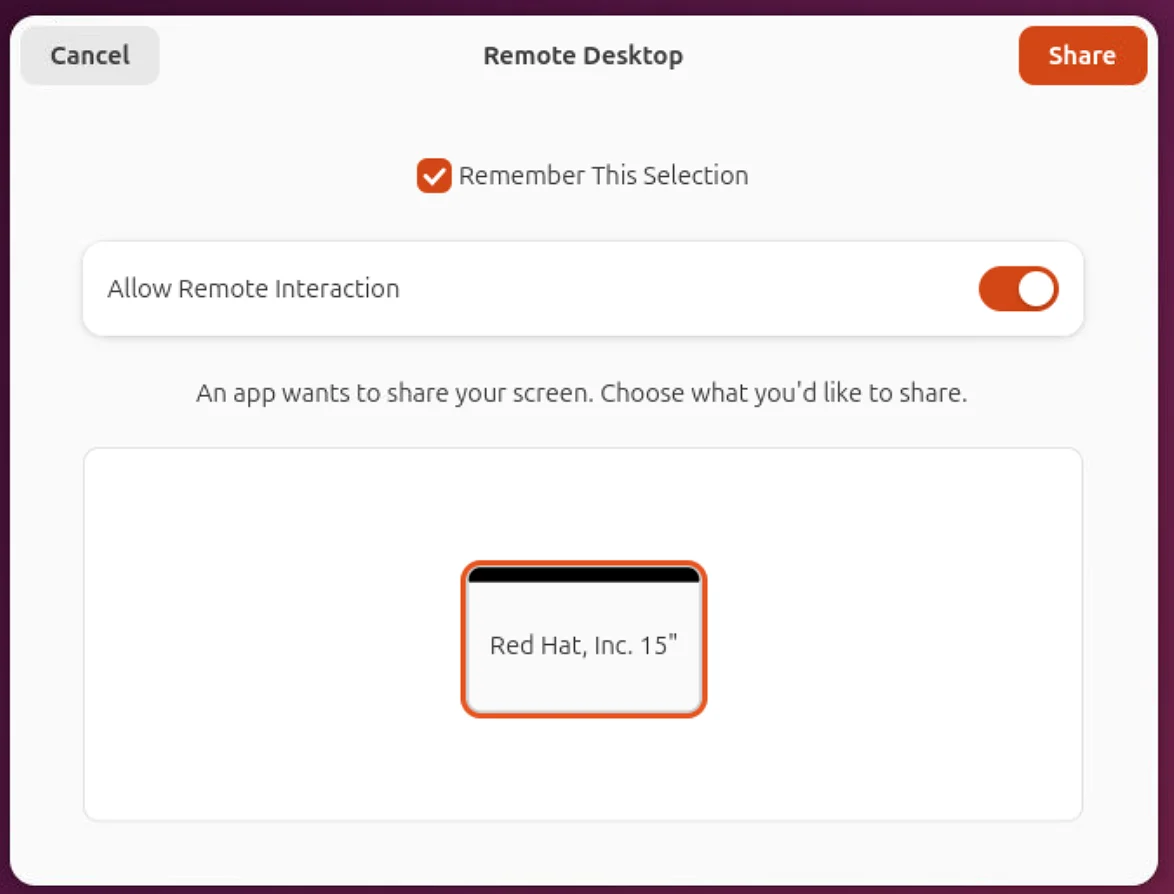
Approve the first connection on the Linux PC. Remember access, allow remote input, then test a second connection before leaving it unattended.
You need access to the Linux desktop for this step. Have someone at the PC, or use an already-working graphical remote connection or a KVM / VM console that can see and control that same desktop. Plain SSH alone cannot show or approve this dialog.
Start with the Linux desktop open
Install Screensie on the Linux PC and sign in to its desktop. Keep your local or alternative graphical access open.
From your helper PC, start a Screensie Remote Control connection. On first use, look for the Remote Desktop or Share Screen dialog on the Linux PC.
Screensie may remain on Connecting until you approve sharing. You cannot use that pending Screensie connection to click its own approval prompt.
Only approve a connection you recognize and intend to allow.
Select the display
In the dialog on the Linux PC, select the monitor you want Screensie to show.
Your monitor name and preview will differ from this example. With several displays, confirm the intended screen is selected before sharing.
The screenshot is an example of the operating system's permission dialog. It is not a connection to a real PC.
Remember the selection
Enable Remember This Selection, or the equivalent remember / always-allow option shown by your desktop.
On supported desktops, Screensie can reuse this approval for later connections rather than asking each time.
If this option is missing, do not assume unattended access is ready. Desktop and portal versions differ. Test a reconnect while someone can still approve the prompt.
Allow mouse and keyboard input
Turn on Allow Remote Interaction. Other desktops may call this remote input, keyboard and pointer access, or remote control.
Sharing the screen and allowing control are separate permissions. If you can see the desktop but cannot click or type, check that input was allowed.
Make this choice on the actual Linux permission dialog, using local or already-working graphical access.
Share, then reconnect once
Click Share in the upper-right corner of the Linux dialog. Wait for the desktop to appear in Screensie.
Check the picture, click and type in a harmless application, then disconnect and reconnect. Keep your alternative access available until this works.
These are your manual checks, not an automatic connection test. Test again after a restart before relying on unattended access.
On the Linux PC
Example permission dialog. Wording and appearance vary by desktop.
Before leaving it unattended
Remembered permission normally removes the repeated approval step on supported systems. It does not remove the need for an available desktop, working connection, or valid Screensie access credentials.
Logout, a changed display, revoked permission, or desktop updates can mean approval is needed again. Lock-screen and login-screen access depend on the desktop; test the conditions you need.
Remembered sharing permission is not lock-screen access. GNOME 42, commonly used on Ubuntu 22.04, inhibits this remote-access path while locked. A saved approval does not override the desktop's restriction.
Unlock the same desktop locally or through an already-working graphical console, then retry Screensie. Before relying on unattended access, test both starting a connection while locked and locking during an existing session.
An Xorg session is another option to test on supported systems. A desktop's dedicated Remote Login service is different from screen sharing and is not currently integrated into Screensie's Wayland capture. Do not assume an OS upgrade alone adds that integration.
Turning off automatic locking leaves the signed-in desktop physically accessible. Screensie does not change that setting or unlock the desktop automatically.
Look for the sharing dialog on the Linux desktop, possibly behind another window. Confirm a display is selected and click Share. If the request expired, disconnect Screensie and start one fresh connection while the local person or graphical console is ready.
I can see the screen but cannot control it
Confirm Allow Remote Interaction was enabled. End the session and start a fresh request if needed. Also check Screensie's session permissions. Do not disable the operating system's security controls to force access.
Remember is missing, or it asks every time
Your desktop may not support persistent screen and input permissions, or the previous approval may no longer be valid. Install supported desktop updates, repeat the approval when available, and test again. Keep a local helper or graphical console available until reconnects work reliably.
Can I approve it over SSH?
Not with a plain SSH terminal. It cannot display or click this graphical prompt. Use someone at the PC or a working graphical connection or console that reaches the same logged-in desktop. Screensie does not bypass Wayland consent.
 Screensie
First connection guide
Screensie
First connection guide